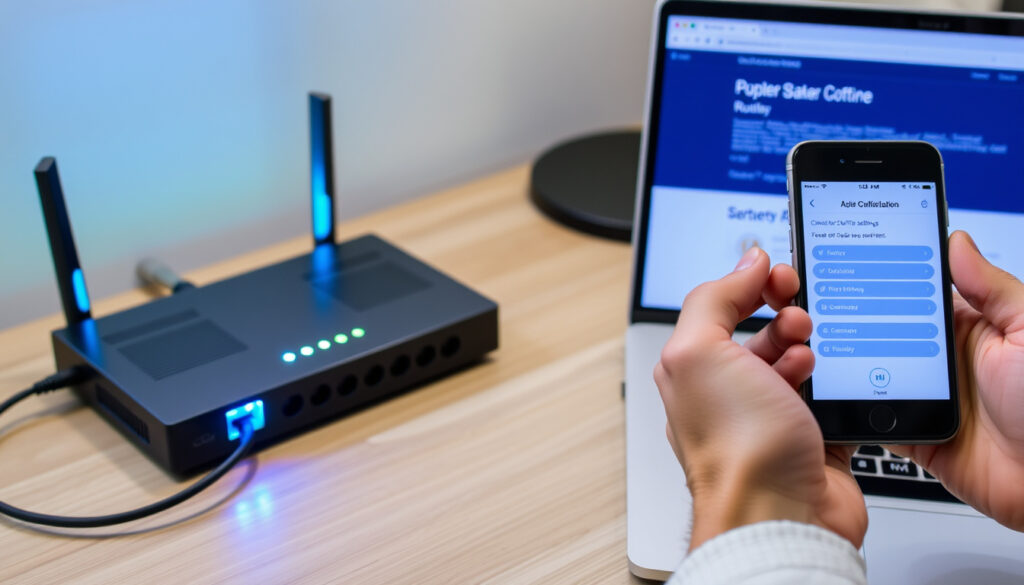
How to Change Wi-Fi Password on Router: Step-by-Step Guide
You probably haven’t touched your Wi‑Fi password since the day the router arrived. That’s normal — but over half of home routers still use the manufacturer’s default login, a risk that security researchers flag constantly. This guide walks you through changing that password on any brand of router, whether you’re on a laptop or just your phone, and what to do if you’re locked out of the admin panel altogether.
- Access Router Settings — Open a browser to your router’s IP address (e.g., 192.168.1.1) and log in with the admin credentials found on the router label.
- Find Wi‑Fi Settings — Navigate to the Wireless or Wi‑Fi section to locate the password field.
- Set New Password — Enter a strong password (12‑16 characters, mixed case) and choose WPA2 or WPA3 encryption, then save.
- Reconnect Devices — Every device must re‑enter the new password to connect.
Routers with default admin credentials unchanged: Over 50% ·
Average time to change Wi‑Fi password: 1-2 minutes ·
Users who change Wi‑Fi password at least once a year: 28% ·
Security increase from regular password change: Significant reduction in unauthorized access
Quick snapshot
- Open browser to router IP (e.g., 192.168.1.1) (TP-Link support)
- Enter admin username and password (Trend Micro Help Center)
- Find on label if default (TP-Link support)
- Navigate to Wireless or Wi‑Fi section (TP-Link support)
- Look for SSID name and password fields (TP-Link support)
- May be under Security tab (YouTube tutorial)
- Type new password (8+ characters, mixed case) (TP-Link support)
- Use WPA2 or WPA3 encryption (TP-Link support)
- Save and apply settings (Trend Micro Help Center)
- All devices must re-enter new password (TP-Link support)
- Update saved networks on phones and laptops (Trend Micro Help Center)
- Test connection with one device first (YouTube router setup tutorial)
Five key facts you need before starting:
| Default admin IP | 192.168.1.1 (most common) (Trend Micro Help Center) |
| Router brands covered | D‑Link, Netgear, Sky, Huawei, TP‑Link (TP‑Link support) |
| Password length recommended | 12‑16 characters (TP‑Link support) |
| Encryption type needed | WPA2 or WPA3 (TP‑Link support) |
| Number of network devices affected | All previously connected (Trend Micro Help Center) |
How do I change the password on my home Wi‑Fi router?
Find your router’s IP address
- The most common IP addresses are 192.168.1.1 and 192.168.0.1 (TP‑Link support). Some routers also use 192.168.2.1 or 10.0.0.1 (TP‑Link support).
- Look on the router’s label — the sticker usually shows the default IP and login credentials (TP‑Link support).
- On Windows, open Command Prompt and type
ipconfig— the Default Gateway entry is your router’s IP. - On Mac, go to System Settings > Network > Wi‑Fi > Details > Router.
If you can’t find the IP on the sticker, try tplinkwifi.net or routerlogin.net. Not all brands support these hostnames, but many do (TP‑Link support).
Log in to the admin interface
- Enter the IP address in a browser address bar. You’ll see a login page.
- The default username is usually
admin; the default password is oftenadminorpassword(Trend Micro Help Center). - If you changed the admin password before and forgot it, you’ll need a factory reset (covered later).
Locate wireless settings
- Look for a menu labeled Wireless, Wi‑Fi, or Wireless Security (TP‑Link support).
- On some interfaces, the password field is called Passphrase or WPA Key.
- If you can’t find it, check the Security or Settings tab.
Enter a new password and save
- Type a strong password of at least 12 characters, mixing uppercase, lowercase, numbers, and symbols (TP‑Link support).
- Select WPA2‑Personal or WPA3‑Personal as the encryption type (TP‑Link support).
- Click Save or Apply. The router may reboot — all connected devices will disconnect (Trend Micro Help Center).
A weak or default password is the single easiest entry for a neighbour or a casual attacker. Changing it takes two minutes and locks the door.
Can I change my Wi‑Fi password using my phone?
Using a browser on Android or iPhone
- Open Chrome or Safari on your phone while connected to the Wi‑Fi network.
- Type your router’s IP address into the address bar — same as on a desktop (YouTube tutorial).
- The admin login page loads in mobile view; log in and follow the same wireless settings path.
Using manufacturer apps
- TP‑Link Tether, Netgear Nighthawk, and Huawei AI Life all let you change the Wi‑Fi password from your phone without typing an IP (TP‑Link support).
- These apps usually scan the local network to detect the router automatically.
- Not all older router models are supported — check the app’s compatibility list.
Accessing router settings via mobile browser
- The mobile browser method works for any router brand, as long as you know the IP address.
- Some routers show a simplified mobile interface that hides the wireless menu — switch to “Desktop site” in browser settings if needed.
The implication: you don’t need a laptop. A phone can do the entire job, though the interface might be cramped.
How to change wifi password on router without password?
Using the router’s physical reset button
- Locate the small recessed Reset button on the back or bottom of the router.
- Press and hold it with a paperclip for 10‑30 seconds (varies by brand) (TP‑Link support).
- The router will reboot with factory defaults, including the admin password and Wi‑Fi password.
Factory reset procedure
- After reset, use the default admin credentials printed on the router label to log in (Trend Micro Help Center).
- Set a new admin password immediately, then change the Wi‑Fi password.
- Warning: A factory reset erases all custom settings — port forwards, parental controls, guest networks (Trend Micro Help Center).
Accessing router settings via WPS or Ethernet connection
- Some routers allow WPS‑based access if the WPS button is enabled, but this doesn’t give admin privileges.
- If the router is connected via Ethernet, you can still access the admin panel using the default IP — no Wi‑Fi password needed for the computer itself.
The trade‑off: a factory reset is the only guaranteed workaround when you’ve lost the admin password. But you’re starting from scratch.
After a factory reset, the router reverts to its original default Wi‑Fi name (SSID) and password — anyone within range could connect if you don’t change it immediately.
The pattern: resetting is the only fallback when admin access is lost, but it resets everything.
How to change wifi password on router huawei or android?
Huawei router web interface steps
- Most Huawei home routers use default IP 192.168.3.1 or 192.168.100.1 (TP‑Link support notes regional variants).
- Log in with the admin credentials from the router sticker.
- Navigate to Advanced Settings > Wi‑Fi > Security to change the password.
Android app: Huawei AI Life
- Install Huawei AI Life from the Google Play Store.
- The app discovers the router automatically when your phone is on the same network.
- Select the router, go to Network > Wi‑Fi, and enter a new password.
Generic Android smartphone steps
- Use the mobile browser method described earlier — it works for any router brand.
- The process is identical to desktop: type the router’s IP, log in, find wireless settings, and save.
Why this matters: Huawei routers are common in many markets, and their default IP differs from the typical 192.168.1.1. Knowing the right address saves frustration.
Is it a good idea to change the Wi‑Fi password?
Security benefits of regular password changes
- Changing the password immediately stops any device currently using the old password from accessing the network.
- Regular changes (every 6‑12 months) reduce the window of opportunity for an attacker who may have obtained the password.
- Default passwords are often published online — leaving them unchanged is a known risk (Trend Micro Help Center).
When to change: after breach, moving, or unknown access
- If you suspect a neighbour or ex‑guest still has access, a password change is the simplest fix.
- After moving into a new home, change the Wi‑Fi password immediately — the previous occupant might still have the credentials.
- If you see unknown devices in your router’s connected‑devices list, change the password right away.
Recommended password strength guidelines
- Use at least 12 characters, mixing uppercase, lowercase, numbers, and symbols (TP‑Link support).
- Avoid dictionary words, birthdays, or simple patterns like “password123”.
- WPA2 or WPA3 encryption requires a strong passphrase to be effective (TP‑Link support).
The pattern: changing a password is a low‑effort action with an outsized security payoff. For the 28% of users who do it annually, the benefit compounds over time.
Does resetting your router change your Wi‑Fi password?
Difference between soft restart and factory reset
- A soft restart (power off/on) leaves all settings intact, including the Wi‑Fi password (Trend Micro Help Center).
- A factory reset (pressing the Reset button) wipes the configuration and restores factory defaults, including the original Wi‑Fi password.
Factory reset reverts to default Wi‑Fi password
- After a factory reset, the router uses the default SSID and password printed on the label.
- You must log in with the default admin credentials and set a new Wi‑Fi password manually (TP‑Link support).
How to avoid losing custom settings
- Before resetting, back up the router’s configuration if the interface offers an export option.
- After resetting and reconfiguring, consider changing the admin password to something you’ll remember — write it down and store it safely.
- A simple reboot never changes the Wi‑Fi password, so always try that first if devices can’t connect.
The catch: many people confuse “restart” and “reset”. A restart takes 30 seconds and doesn’t touch your password. A reset wipes everything.
For a detailed walkthrough on changing your Wi-Fi password, including steps for both phone and router methods, check out this guide.
Frequently asked questions
How often should I change my Wi‑Fi password?
Security experts recommend every 6 to 12 months. More often if you suspect unauthorised access. Default passwords should be changed immediately.
What is the default username and password for my router?
Most routers use admin as the username and admin or password as the password (Trend Micro Help Center). Check the router’s label for exact credentials.
Can I change my Wi‑Fi password without logging into the router?
Not directly — you need admin access. The only workaround is a factory reset, which wipes the admin password and lets you log in with the default credentials.
How do I find my router’s IP address on Windows?
Open Command Prompt and type ipconfig. Look for the Default Gateway entry — that’s your router’s IP.
How do I find my router’s IP address on Mac?
Go to System Settings > Network > Wi‑Fi > Details > Router. The IP address appears there.
Will changing my Wi‑Fi password disconnect my current devices?
Yes. Every device currently connected will be disconnected and must re‑join the network using the new password (Trend Micro Help Center).
What is the difference between WPA2 and WPA3 encryption?
WPA3 is the newer, more secure standard. It offers stronger encryption and better protection against brute‑force attacks. WPA2 is still safe for most homes. Use WPA3 if your router supports it (TP‑Link support).
How do I set up a guest network with a different password?
Look for a “Guest Network” option in the wireless settings. Enable it, set a separate SSID and password, and save. Guests connect to that network, keeping your main devices isolated.
Related reading
- What Is a VPN? Definition, How It Works & Setup Guide
- How to Factory Reset iPhone: Full Step-by-Step Guide
“The simplest security upgrade for any home network is changing the default Wi‑Fi password. It takes less than two minutes and blocks the most common attack vector.”
TP‑Link support documentation
“After saving a new wireless password, the router will immediately drop all current Wi‑Fi clients. They will need the new password to reconnect.”
Trend Micro Help Center (security advice)
“The default IP address is almost always printed on the bottom or side of the router. Check there before searching online.”
YouTube router setup tutorial
“Whether you use a laptop or a phone, the admin panel is the same. Mobile browsers work fine as long as you type the IP correctly.”
YouTube Wi‑Fi password change guide
For anyone still using a factory‑set password, the risk of unauthorised access is real and easily fixed. The cost: two minutes of your time. The consequence: a dramatically more secure home network. For the millions of users who never change their Wi‑Fi password, the decision is clear: change it today, or leave the digital front door unlocked.
More related posts
 Cuba Gooding Jr: Net Worth, Legal Battles, and Career Fall
 Jurien Bay Caravan Park: Complete Guide for 2026
 Jenny Agutter: Age, Residence, Family, and Career Facts
 Kalyn Ponga: Biography, Bathroom Incident, ADHD & Salary
 The Long Walk Movie – Plot, Cast, Book Differences and Release
 Ariana DeBose Biography: Partner, Ethnicity, Awards
 Seth Green: Career, Family Guy, Net Worth & Personal Life
 The Mini Nyt – Guide to Quick Daily Puzzle
